
Instructions for invoice management
Published on Update
Instructions for managing invoices on iOrder: search and filter invoices, view product and customer information, issue electronic invoices.
I. General introduction to invoice management
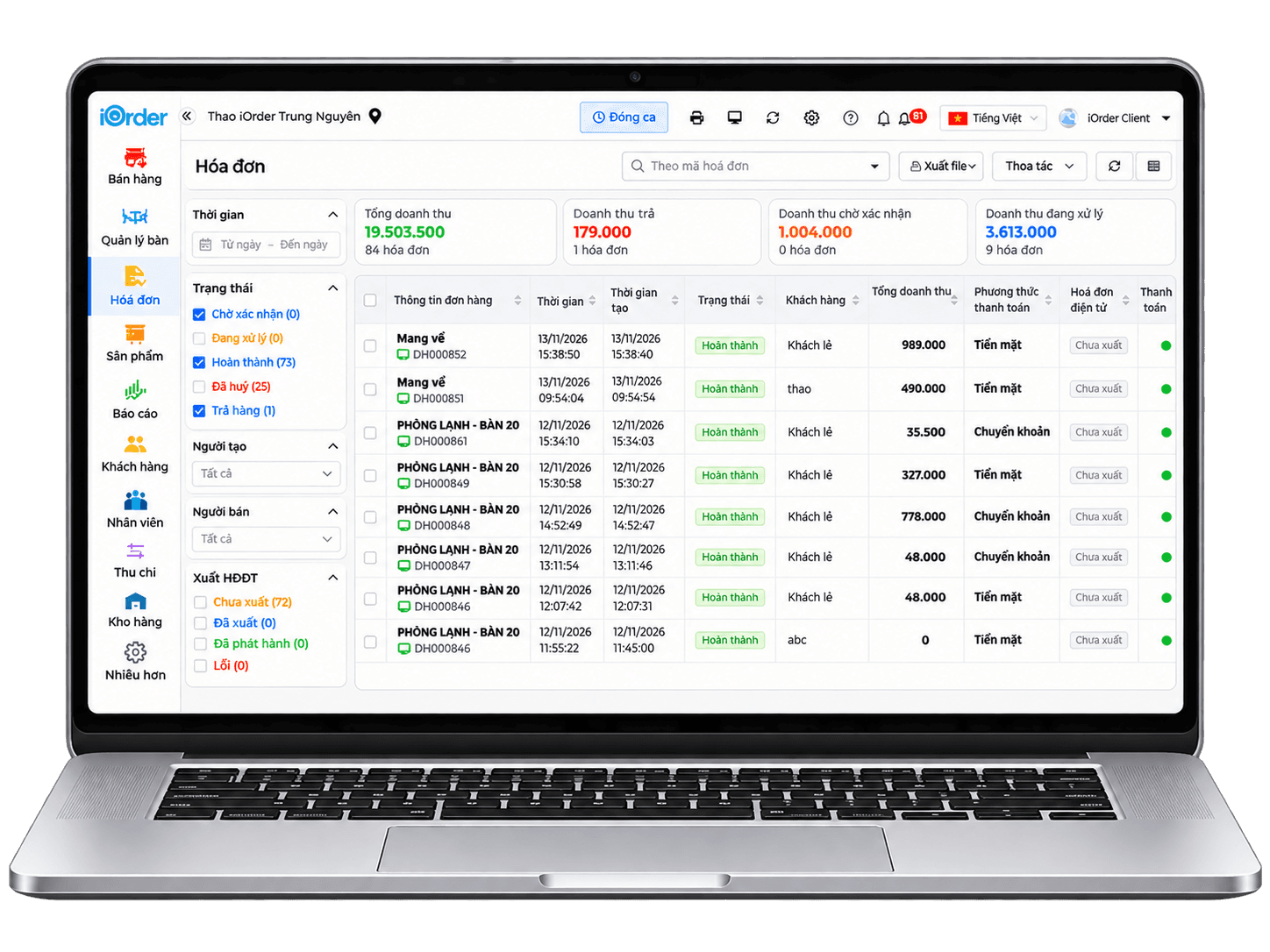
The Invoice Management screen saves recorded sales orders. Here you can search by code, filter by status, view payment information and perform operations with electronic invoices.
II. Invoice filter
1. Search by invoice code
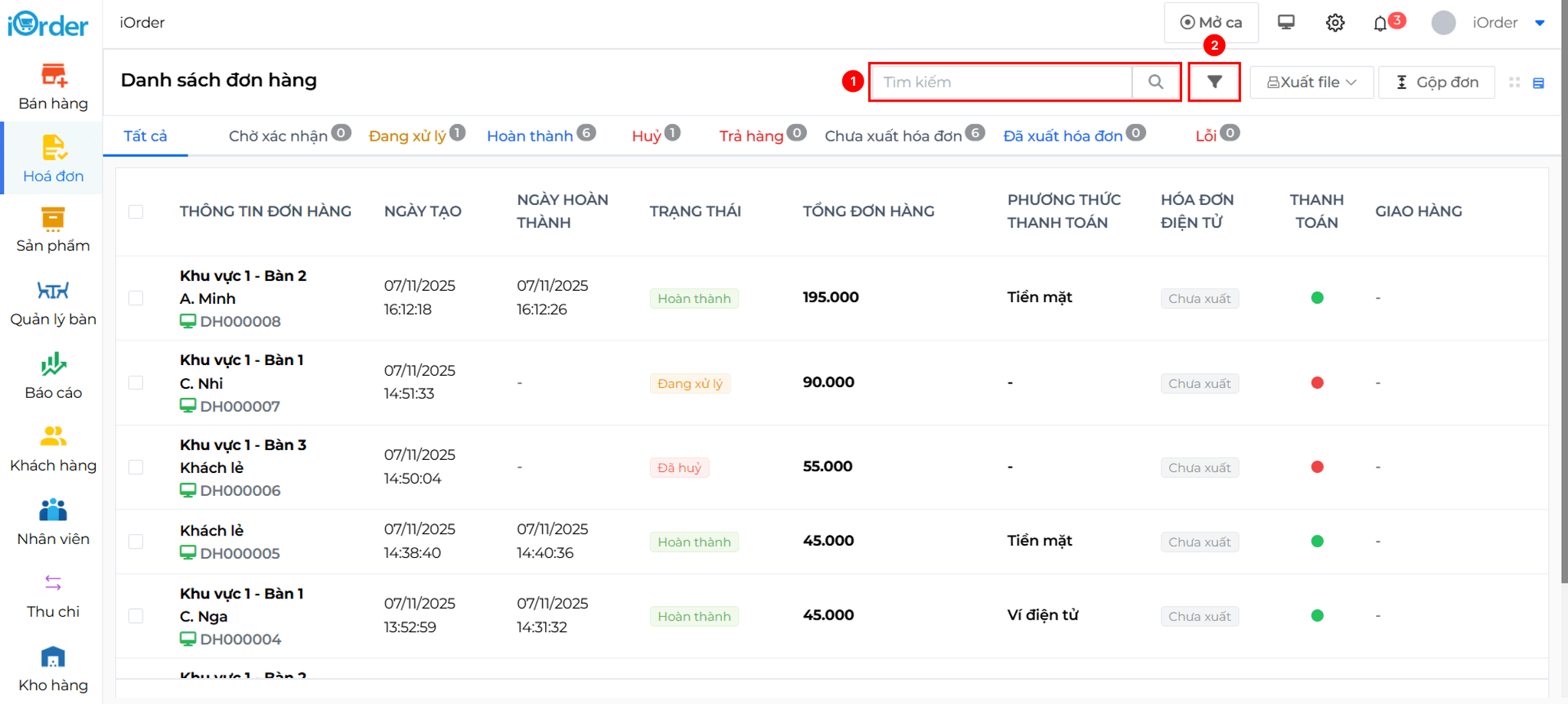
The search field by invoice code helps users quickly look up a specific invoice based on a known code.
2. Advanced filtering
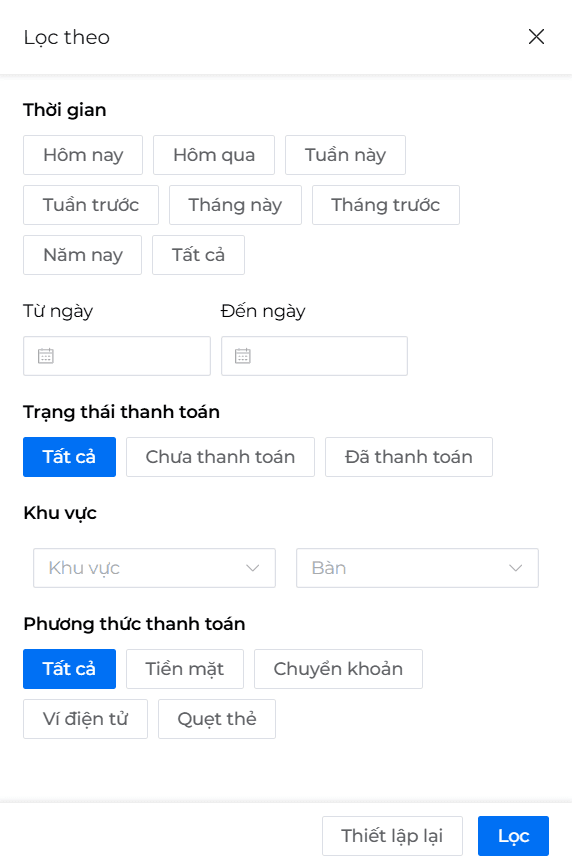
Advanced filters help users quickly search for invoices by specific criteria, including:
Time
Quick options: Today, Yesterday, This Week, Last Week, This Month, Last Month, This Year, All.
Customize the time period: Enter “From date” and “To date” by selecting from the calendar.
Payment status
All: Shows all invoices.
Unpaid: Displays unpaid invoices.
Paid: Displays collected invoices.
Areas and Tables
Filter invoices by each service area and specific table name configured in the system.
Payment method
All: Shows all invoices.
Cash: Displays invoices paid in cash
Transfer: Displays payment invoices via transfer method
E-wallet: Display payment invoices through e-wallet.
Swipe card: Display payment invoice by swiping card via POS machine.
Function button
Filter: Apply filter conditions.
Reset: Clear all conditions to perform new filtering.
III. List of invoices
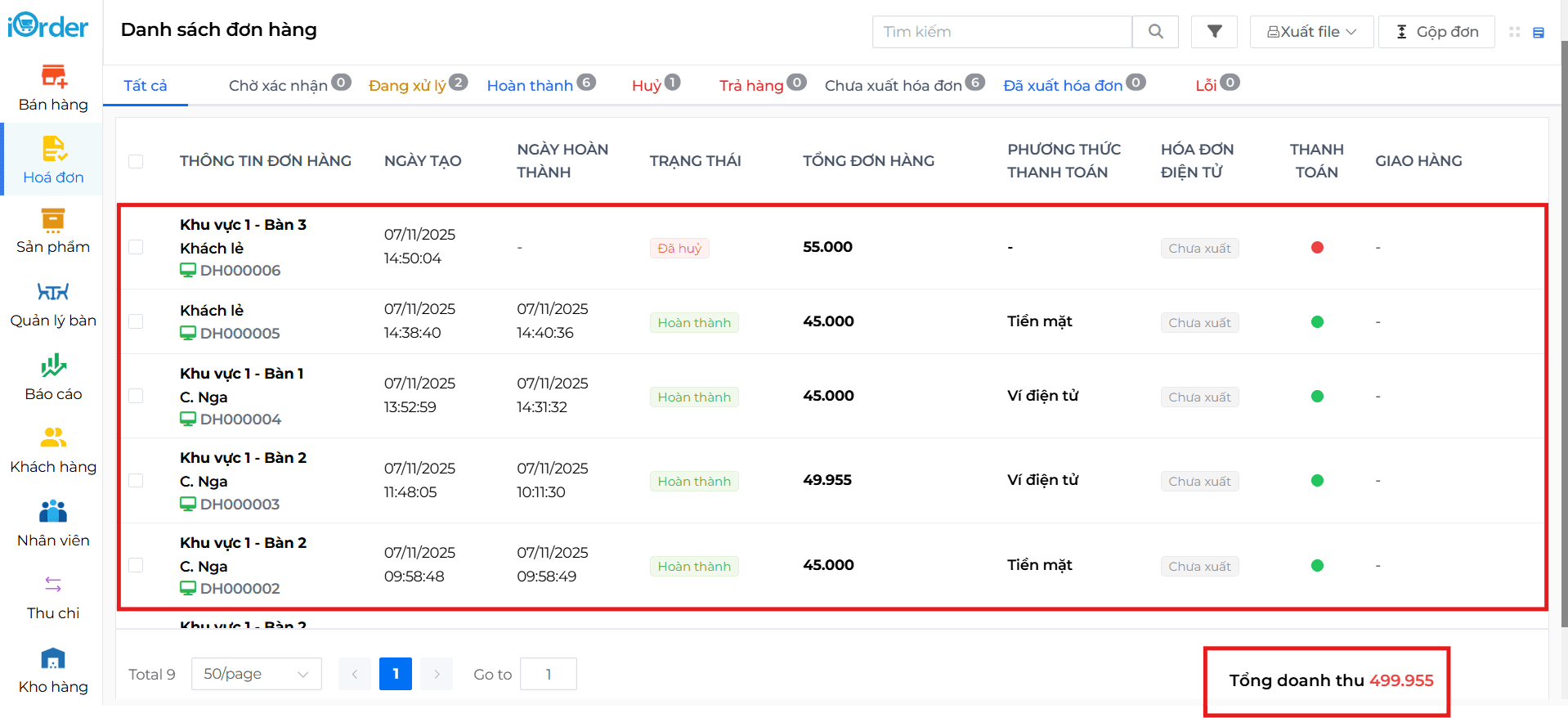
The invoice list interface is the place to summarize all orders created in the system. When the user accesses the tab "Invoice status" In the invoice management screen, the system will display a list of orders according to each processing status. Here, users can easily monitor, check, and process invoice status according to each status. Each line in the list corresponds to an invoice and displays the following key information:
No | Content | Detailed description |
1 | Order information | Includes customer name (or "Retail customer" if no information is available) and invoice code (self-generated, for example: DH00093). |
2 | Creation date – Completion date | Displays the time the order was created and the time it was completed (payment completed). |
3 | Order status | Classified by processing progress: • Wait for confirmation • Processing • Complete • Canceled • Return goods |
4 | Total order | Total value of goods in the order (with/without VAT depending on configuration). The number of included products is displayed below. |
5 | Payment method | Classified by methods: • Cash • Transfer • Swipe the card • Electronic wallet |
6 | Electronic invoice (Invoice) | Display invoice export status: Not exported / Exported. |
7 | Payment status | Color icon: |
8 | Delivery status | Applicable for take-away/delivery orders. Shown: Not yet delivered – Ongoing delivery – Delivered. |
9 | Total revenue | Displayed in the bottom right corner of the interface, calculates the total value of displayed orders (according to the current filter). |
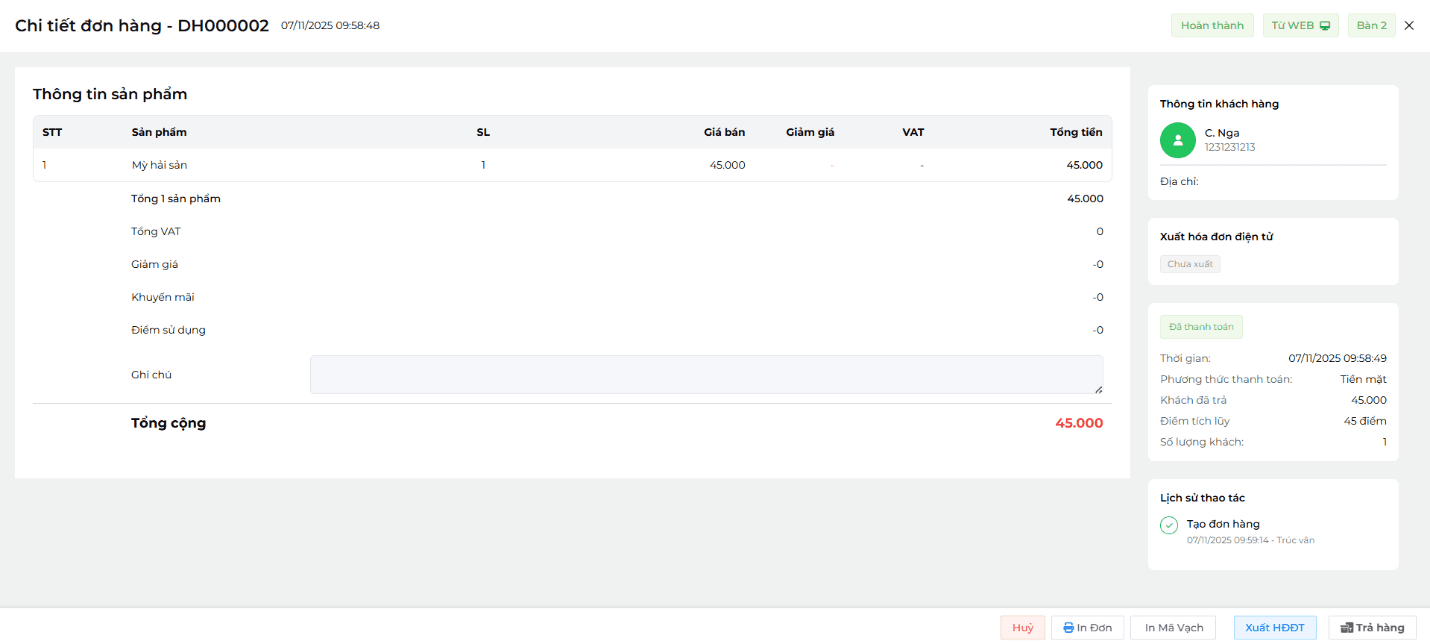
Users can click on any order code to open the display popup Invoice details.
1. Product information
Product list: The table lists all products/services that the customer has ordered, including:
STT: Serial number
Product name: Name of dish (for example: Seafood noodles)
SL (Quantity): Number of customers ordering
Selling price, Discount, VAT, Total: Details about the value of each item.
Order summary: Financial summary of the entire order.
Total [X] products: Total number of items in the order.
Total VAT, Discounts, Promotions, Points of Use: List value adjustments (if any).
Notes: Displays general notes for the entire order (if any).
Total: The final value that the customer must pay.
2. Customer information
Displays the name, phone number and address of the customer assigned to the order.
3. Issue electronic invoices
Displays the status of the order's Electronic Invoice (e.g.: Not yet issued).
4. Payment details
Status: Paid (green).
Time: The exact time the order is paid.
Payment method: Payment method (eg: Cash).
Customer paid: Actual amount the customer gave.
Accumulated points: Number of points the customer receives from this order.
Number of guests: Number of guests served for this order (eg: 1).
5. Operation history
Log actions related to orders
V. Actions on invoices

1. Export file
Function: Export the list of current invoices by selecting summary file or detailed file to file formats for external storage or processing.
File export options usually include:
Export Excel file (.xlsx)
Can include the option to filter by time, status, or order creator before exporting.
2. Combine applications
During service, especially in restaurants, cafes or table service models, there are many situations that cause staff to create multiple separate orders for the same customer or the same table. This can lead to fragmentation in management and difficulty making payments or invoicing.
Features Merge applications in iOrder helps users:
Combine multiple small orders into one complete order.
Reduce duplication and simplify the payment and invoicing process.
Ensure consistent and complete sales data before printing/exporting VAT invoices
Specific examples of real-life situations at restaurants
Customers: Table 05 – Aquarium Area
Time: 7:30 p.m. August 5
Generate orders as follows:
Time | Staff | Product calls | Order code | Total amount |
19:30 | Employee A | Peach orange lemongrass tea (2 cups) | DH0190 | 70,000 VND |
19:45 | Employee B | Garlic butter bread (1 portion) | DH0191 | 25,000 VND |
20:00 | Employee A | Lychee tea (1 cup) | DH0192 | 35,000 VND |
Total: 3 orders created for the same table, by 2 different staff.
How to handle using the Merge Orders feature
Access staff invoice screen.
Switch tabs "E-invoice status" > select three dot icon > Merge applications.
Choose 3 orders: DH0190, DH0191, DH0192.
Press Confirm to combine → the system creates a new order DH0193 with total money 130,000 VND.
Old applications will be marked as "Incorporated" and no longer appears on the main list.