Guide to customer management
Published on Update
Instructions for customer debt on iOrder: view, edit customer information and track revenue of each customer.

I. General introduction about customer debt
The Customers section stores contact information, revenue and debt of each customer. Managers can review transaction history before recording or collecting debt.
List of customers, customer groups and debt data are separated into areas on the screen.
II. Customer management
Each customer has its own information about revenue and the amount being debited. The steps below show how to find, add, and edit customers.
Below are detailed instructions on customer management operations:
Step 1: Access Customers
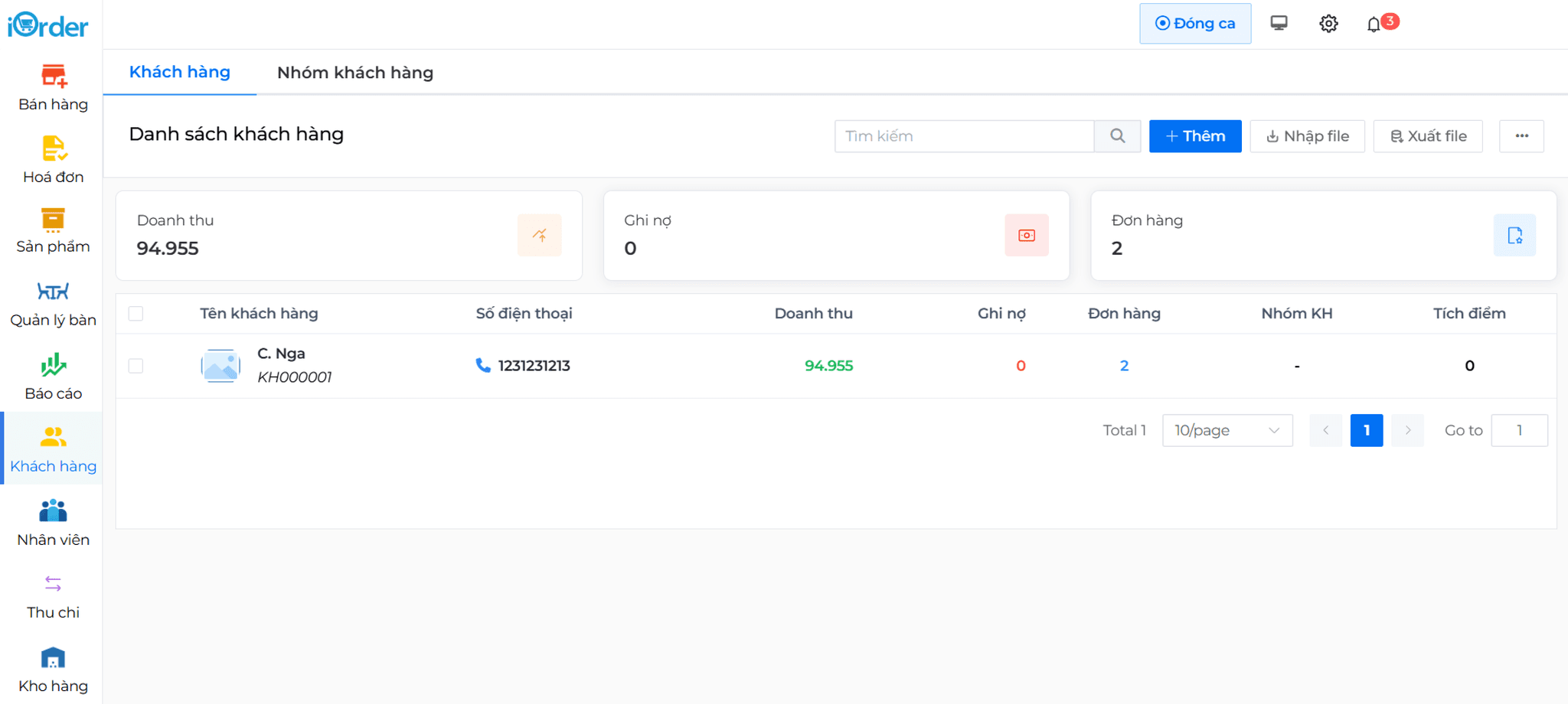
From the menu on the left, select “Customers”
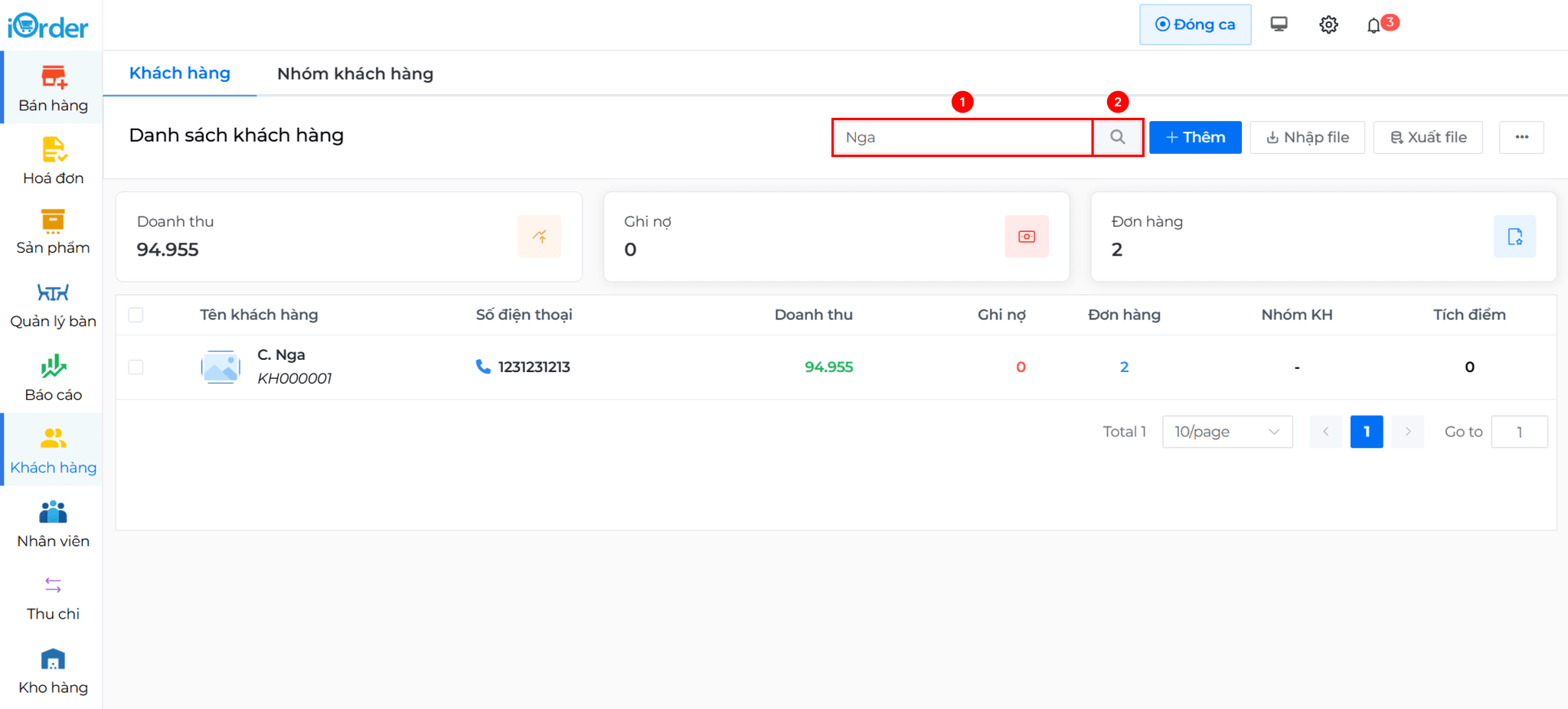
Next, the screen will display the list of customers, customer groups, revenue overview, debits, and total customer orders in the system.
Step 2: Add new customers:
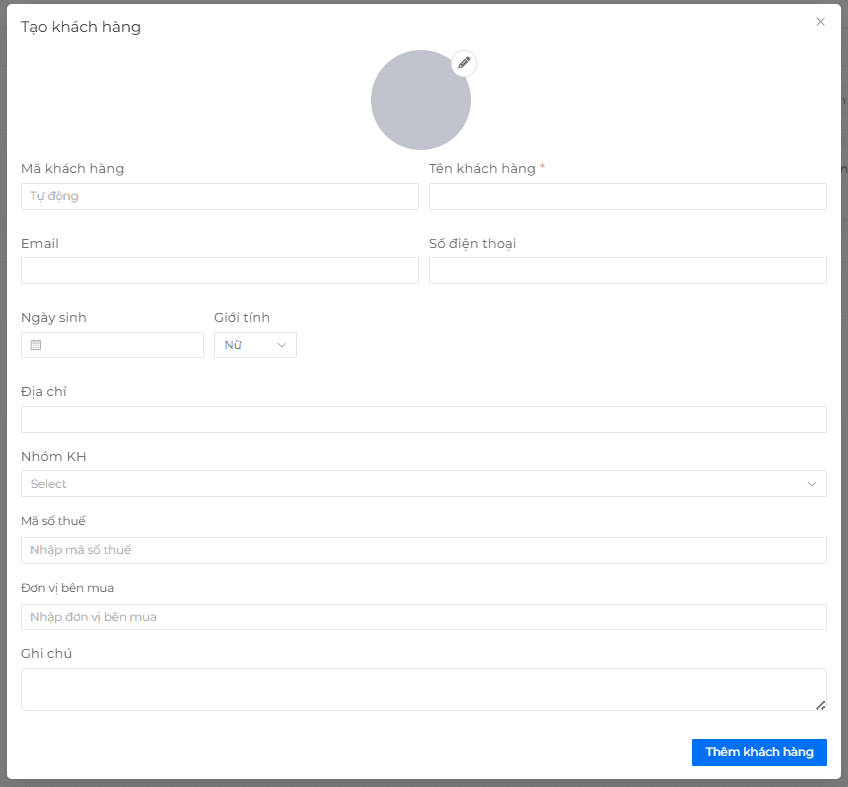
Click the "+Add" button to add a new customer to the system.
A new add customer pop-up will display, you need to enter:
Customer code (Automatic)
Customer name
Representative photo (if any)
Phone number
Optional information: Email, date of birth, gender, customer group, address, notes.
In addition, you can enter customer invoice information: tax code, purchasing unit.
After completing the information, press Add customers to complete the operation of adding new customers.
Step 3: View/Edit/Delete customers
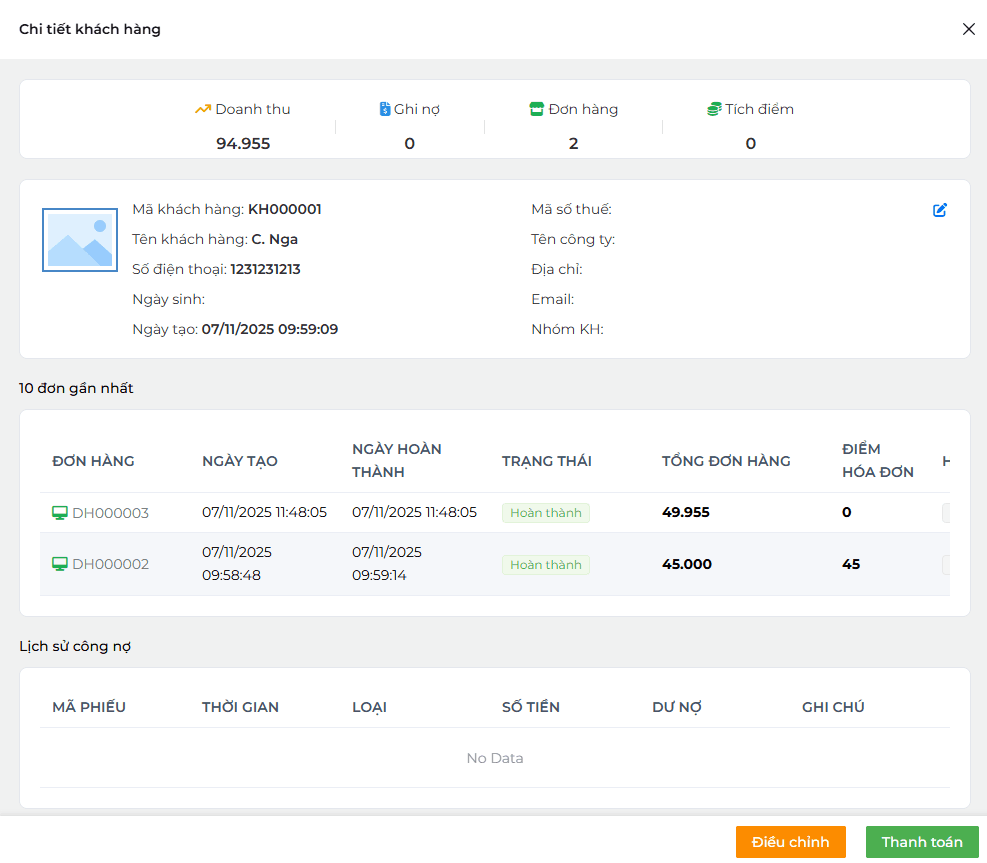
Press Enter the customer's name any.
The system will display customer details sidebar Corresponding includes: customer revenue, total orders, debt history.
In this window, users can perform operations See more, Display pop-up to edit customer information:
Edit: Click the button Update to update name, image, phone number, date of birth, gender, address, tax code,...
Delete customer: Press Erase to completely remove the customer from the list.
In addition, users can delete multiple customers by performing the following operations:
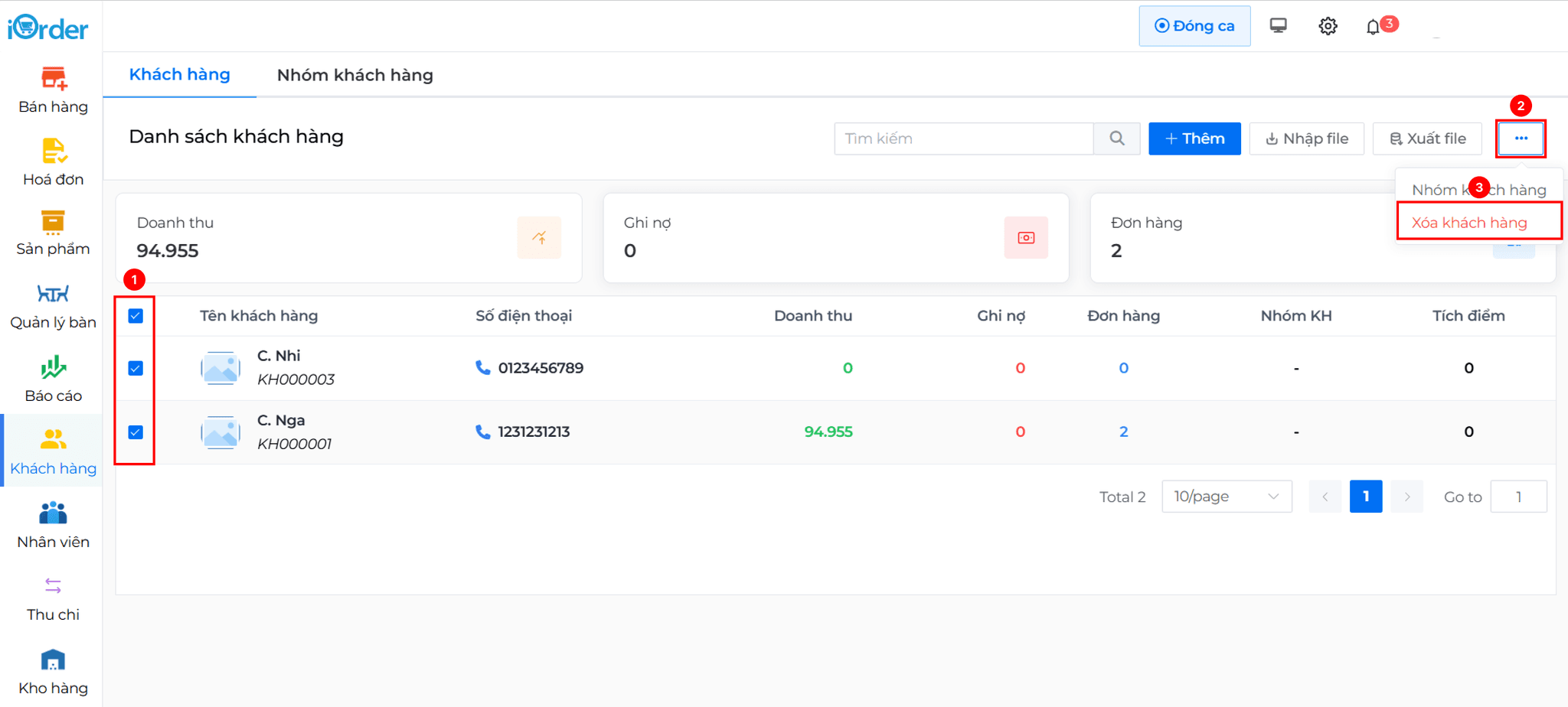
Step 4: Search for customers:
Perform a customer search with the following operations:
Enter customer's name any in the search box.
The system will display search results with the corresponding customer name.