
Instructions for installing a receipt printer
Published on Update
Connect the thermal printer via USB or LAN and test print the receipt.
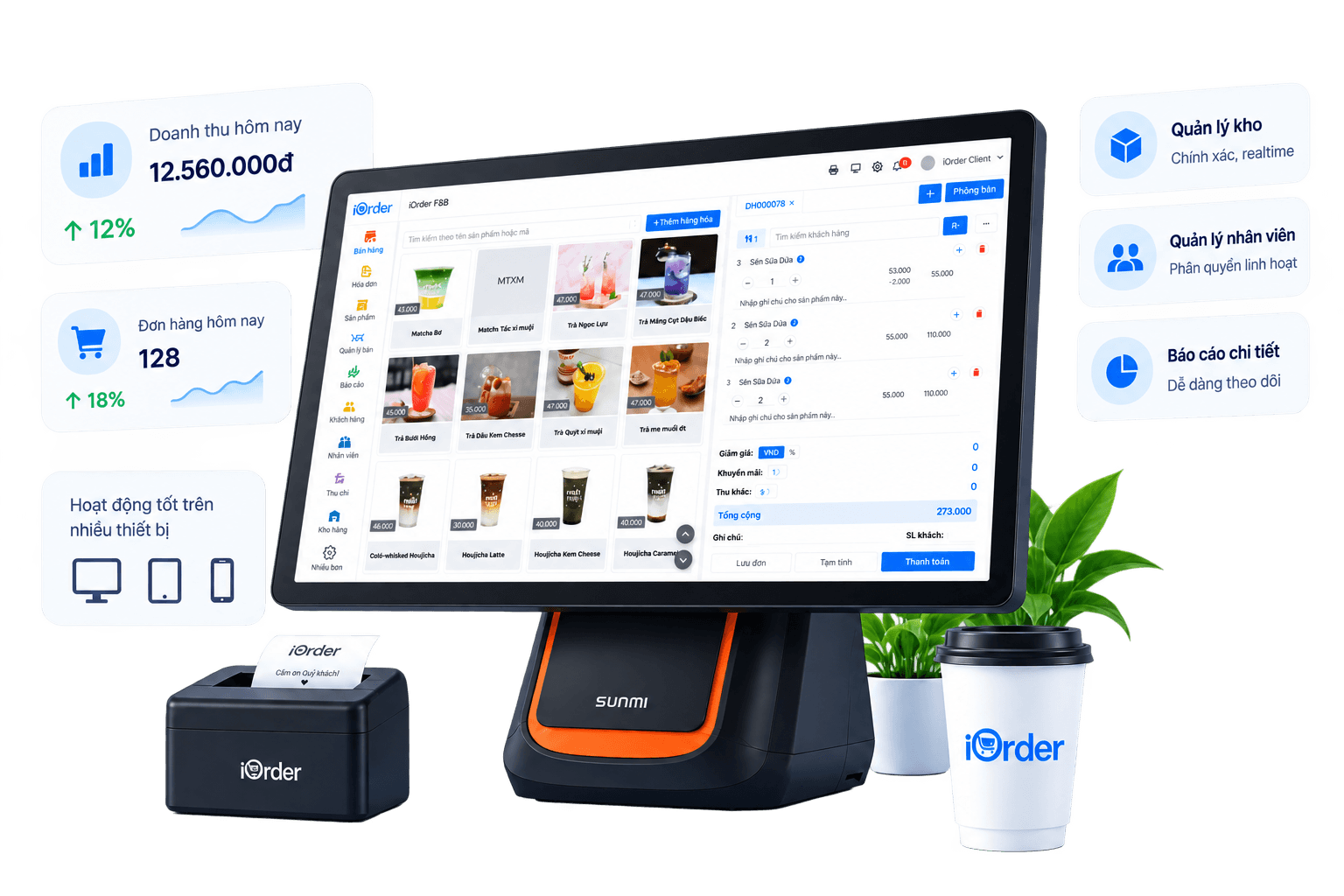
iOrder supports 58mm and 80mm thermal printers via USB, LAN and Bluetooth. The printer helps the store print invoices for customers immediately upon payment and print coupons for the kitchen when a new order is received.
Before starting to install the receipt printer
Check that the printer is plugged in, has the correct size thermal paper, and is connected to the point of sale device. Knowing the paper size (58mm or 80mm) and connection type (USB, LAN or Bluetooth) will help you set up faster.
Install the driver
Download the correct driver for your device in the Installation Support section and install it like normal software.
You can go to the page Installation Support to download the appropriate driver. You should choose the correct model name written on the printer body to avoid errors of not recognizing the device.
Connect in iOrder
Go to Settings → Printers → Add printer
Select connection type and paper size
Click Print Test to check
The Test Print step is very important: if the machine prints the correct content, you have successfully installed it. If not, check the connection type and paper size selected.
Which connection type to choose?
USB: simplest, suitable when the printer is placed right next to the point of sale device
LAN: suitable when the printer needs to be placed far from the counter, for example a kitchen printer
Bluetooth: neat, no wires needed, suitable for handheld POS machines
Handling when the printer does not print
Check that the printer has paper and the lid is closed
Check the cable or Bluetooth connection
With LAN printers, make sure the printer and point of sale device are on the same network
Reinstall the driver for the correct model and then try printing again
If you've tried the above steps and the printer still doesn't work, try Submit a support request Let the iOrder technical team help you.
Read more
Thermal receipt printer: choose 58mm or 80mm size for the store?: compare 58mm and 80mm sizes to choose the right printer.