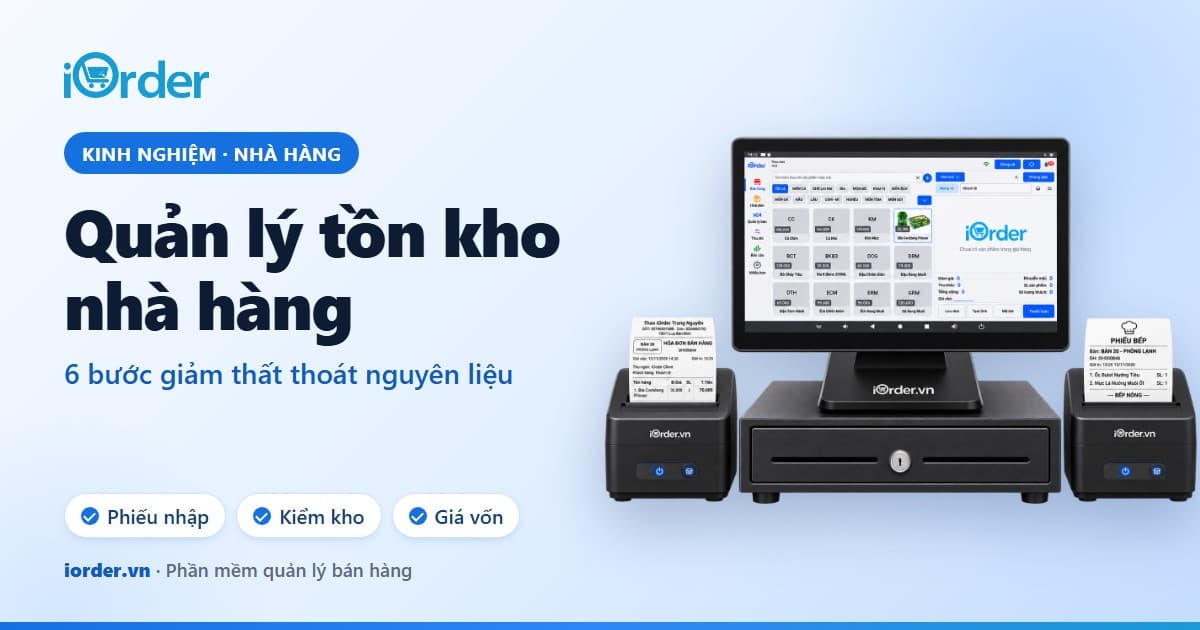
Restaurant inventory management is an easy task to take lightly until at the end of the month you realize that you have spent more on imported goods than on sold goods. Material loss rarely comes from one major cause; Usually there are dozens of small flaws: imports are less than the invoice, processing exceeds the quantity, damaged goods are not recorded. This article introduces six steps to help you control each step.
Why is inventory the biggest loss?
Unlike revenue recorded right at the counter, ingredients go through many hands: order taker, delivery person, chef, bartender. Every step that is not recorded is a place where data is broken. Without reconciliation records, any discrepancies only become known when it is too late to trace the cause.
6 steps to manage restaurant inventory
Step 1: Make a clear list of ingredients
Each ingredient needs a unified name, a fixed unit of measurement (kg, liter, box...) and product group. Each person's name written differently is the source of duplicate data. Please close the category at once and only allow one person to add a new one.
Step 2: Each time you import goods, you have an import ticket
The simplest rule: without a receipt, there will be no goods entering the warehouse. The slip clearly states the supplier, item, quantity and import price. Thanks to that, you have price history for each supplier and know which products have unusual price increases.
Step 3: Compare when receiving goods
The consignee compares the actual number received with the order and delivery note. The difference is recorded immediately on the receipt instead of leaving it until the end of the month. This is a short step but prevents a lot of input loss.
Step 4: Monitor delivery and inventory regularly
Basic formula: ending inventory = beginning inventory + input − output. When sales and deliveries are recorded in the same system, the inventory on the software is always close to the actual inventory, and you can immediately see which items are running out so you can order more promptly.
Step 5: Periodically check inventory and handle discrepancies
Choose a fixed inventory schedule, for example weekly for perishables and monthly for dry goods. Count the actual number, compare it with the number on the software and then record the difference with the reason (damage, breakage, processing loss). Repeated discrepancies in the same item are a signal to review the process.
Step 6: View cost price and report on best-selling products
The cost price shows how much profit each item makes. Combined with the best-selling item report, you decide which items to push, which items to adjust prices, and which ingredients to import more. This metric is available in reports if sales and inventory data are managed together.
Signs that inventory is leaking
Imports increased but revenue did not increase correspondingly
The same item continuously differs after each inventory count
Unexpected out of stock even though it's still in stock
The import price of the same item varies greatly between times
Tools make this easier
Working with a notebook or spreadsheet is still possible, but it is very labor-intensive as the number of items increases. POS management software has available suppliers, receipts, inventory counts and warehouse books to help you automate records. See how to perform each operation in iOrder Warehouse guide.
Get started with iOrder
iOrder is POS management software for computers, POS terminals, and phones. It combines sales, table management, inventory, invoices, receipts and expenses, shift closing, and reporting in one system. You can view Introducing iOrder POS management software or leave information on the page Contact Let the iOrder team advise you on how to apply the warehouse management process to your store model.