Electronic invoices for stores are no longer just a matter for large businesses: from coffee shops to grocery stores, anyone can meet a customer to request an invoice. If the store has prepared the process and information, issuing invoices only takes a few steps; If you are not prepared, the staff will be confused, customers will have to wait and errors will easily arise.
Why should you prepare the process early?
Invoices are valuable documents for both parties. For business customers, invoices are used to account for expenses; For stores, invoices are directly related to books and obligations to tax authorities. When information is wrong or missing, making adjustments often takes much more time than getting it right the first time.
Invoicing regulations may change over time. Please compare with the latest guidance from the tax authorities and the electronic invoice service provider that the store is using.
Information that needs to be prepared
Seller information
The unit name, tax code, address and contact information of the store must be consistent with the registration dossier. It should be saved in the system so that all invoices come from the same source, avoiding each person typing the same way.
Buyer information
When a customer requests an invoice, staff should ask for the full business name, tax ID, and address. Read the details back to the customer before issuing the invoice, because even one incorrect digit in the tax ID can make it invalid.
Goods information
Product name, unit of measure, quantity, unit price and tax rate need to match sales data. When products are managed within the same POS software, this information is retrieved automatically instead of being re-entered manually.
Electronic invoice issuance process at the store
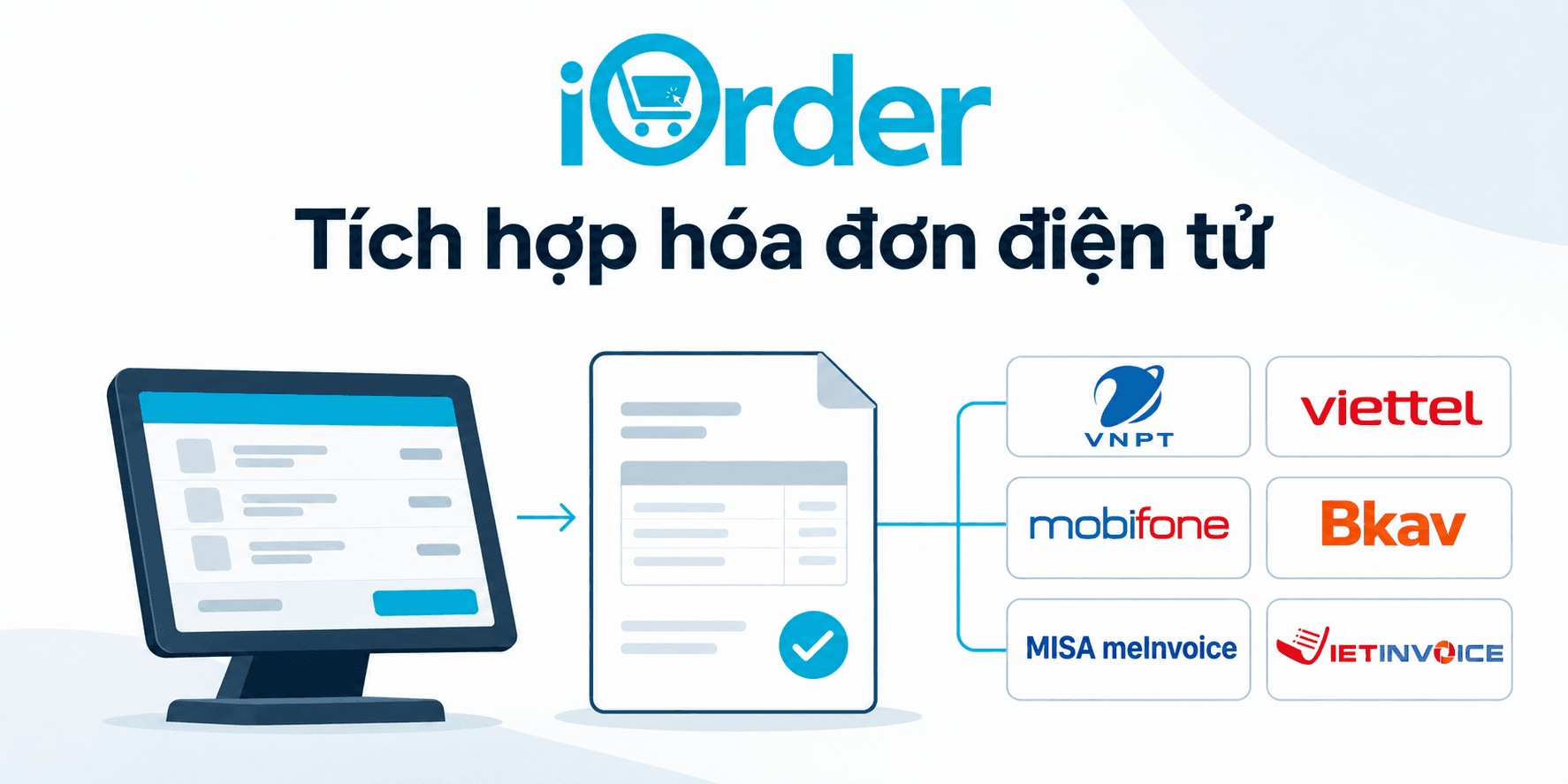
Sell and pay as usual to have sales invoices in the system.
When the customer requests, the employee opens the correct invoice and chooses to issue an electronic invoice.
Enter or select buyer information, read it over with the customer to make sure it is correct.
Export invoices and check status after export.
Send invoices to customers via email or text message the way they want to receive them.
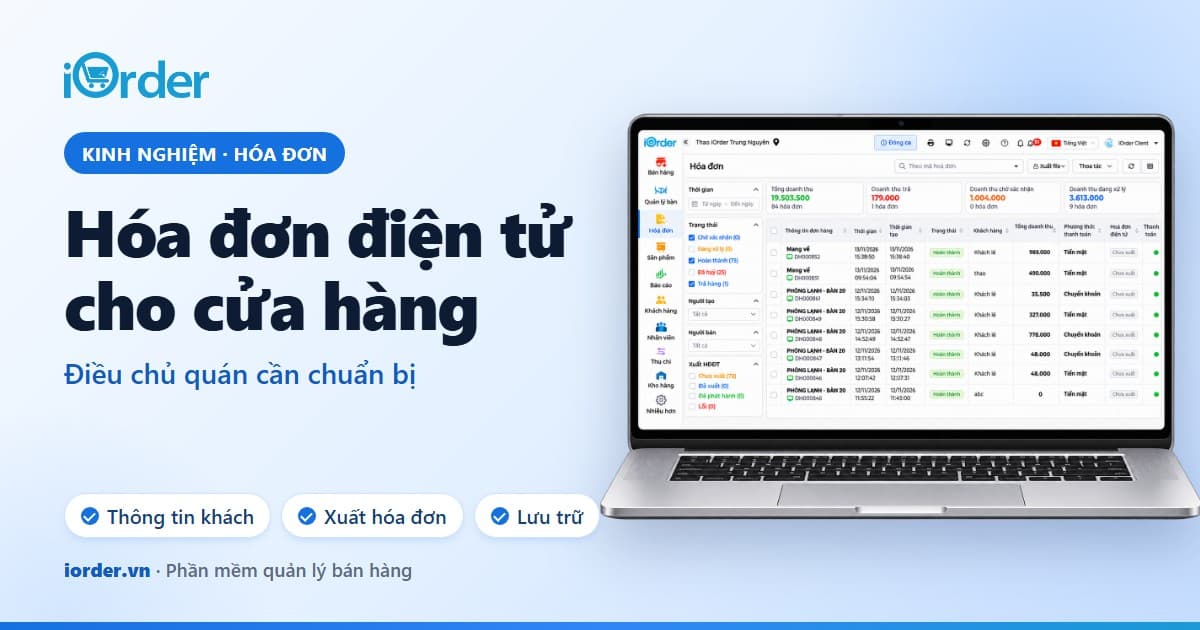
On iOrder's invoice management screen, each invoice has an electronic invoice status such as not yet issued, issued, issued or error, so the person in charge can see which invoice is missing. Specific operations are guided in Invoice management instructions.
Common errors
Incorrectly entered the buyer's tax code or unit name
Forgot to issue an invoice to a customer who requested it and then didn't remember at the end of the day
The invoice reported an error but no one processed it, so it was backlogged for many days
Each employee works in his own way, there is no common process
Check invoices at the end of the day
Checking only takes a few minutes if you have the habit: filter unissued invoices, check error invoices, then compare the list of customers who requested invoices during the shift with the issued list. Do it at the same time as the operation end of shift at the end of the day Helps to clear the backlog at the end of the day.
A quick checklist
Seller information has been saved correctly and consistently
Employees know how to ask and reread buyer information
Someone is responsible for handling error invoices during the day
At the end of the day, filter unissued invoices for comparison
Get started with iOrder
iOrder is POS management software for computers, POS terminals, and phones. It combines sales, table management, inventory, invoices, receipts and expenses, shift closing, and reporting in one system. You can view Introducing iOrder POS management software or leave information on the page Contact Let the iOrder team advise you on how to apply the electronic invoicing process for your store model.